Geplante Aufgaben
Mit Geplanten Aufgaben automatisieren Sie regelmäßige Arbeitsabläufe: Lassen Sie hermine.ai einmalig, täglich, wöchentlich, monatlich oder an bestimmten Wochentagen Aufgaben ausführen, z. B. eine Zusammenfassung erstellen, Erinnerungen senden oder Daten abfragen.
- Schalter Geplante Aufgaben aktivieren: schaltet das Feature frei.
- Button Neue Aufgabe: legt eine neue geplante Aufgabe an.
- Liste Ihre geplanten Aufgaben: jede Aufgabe mit Status-Badge (Aktiv bzw. Pausiert), zugewiesenem Agenten, Zeitplan und nächster Ausführung.
- Aktions-Icons pro Aufgabe, u. a. Jetzt ausführen, Pausieren, Bearbeiten und Löschen.
Anwendungsfälle
| Beispiel | Rhythmus | Nutzen |
|---|---|---|
| Täglicher Branchen-News-Überblick | Täglich | Automatisch generierte Zusammenfassung wichtiger Entwicklungen |
| Wöchentlicher Projektbericht | Wöchentlich | Status-Update für Ihr Team ohne manuellen Aufwand |
| Report jeden Montag und Donnerstag | Bestimmte Wochentage | Mehrere feste Termine pro Woche mit einer Aufgabe |
| Monatliche Budgetübersicht | Monatlich | Automatisierter Bericht über Ausgaben und KI-Nutzung |
| Einmalige Erinnerung an eine Deadline | Einmalig | Pünktliche Benachrichtigung zu einem festen Termin |
Aktivierung
- Öffnen Sie das Avatar-Menü oben rechts und wählen Sie Persönlich.
- Wechseln Sie auf der Seite Persönliche Einstellungen in den Tab Geplante Aufgaben.
- Schalten Sie den Schalter Geplante Aufgaben aktivieren ein.
Aufgabe im Chat erstellen
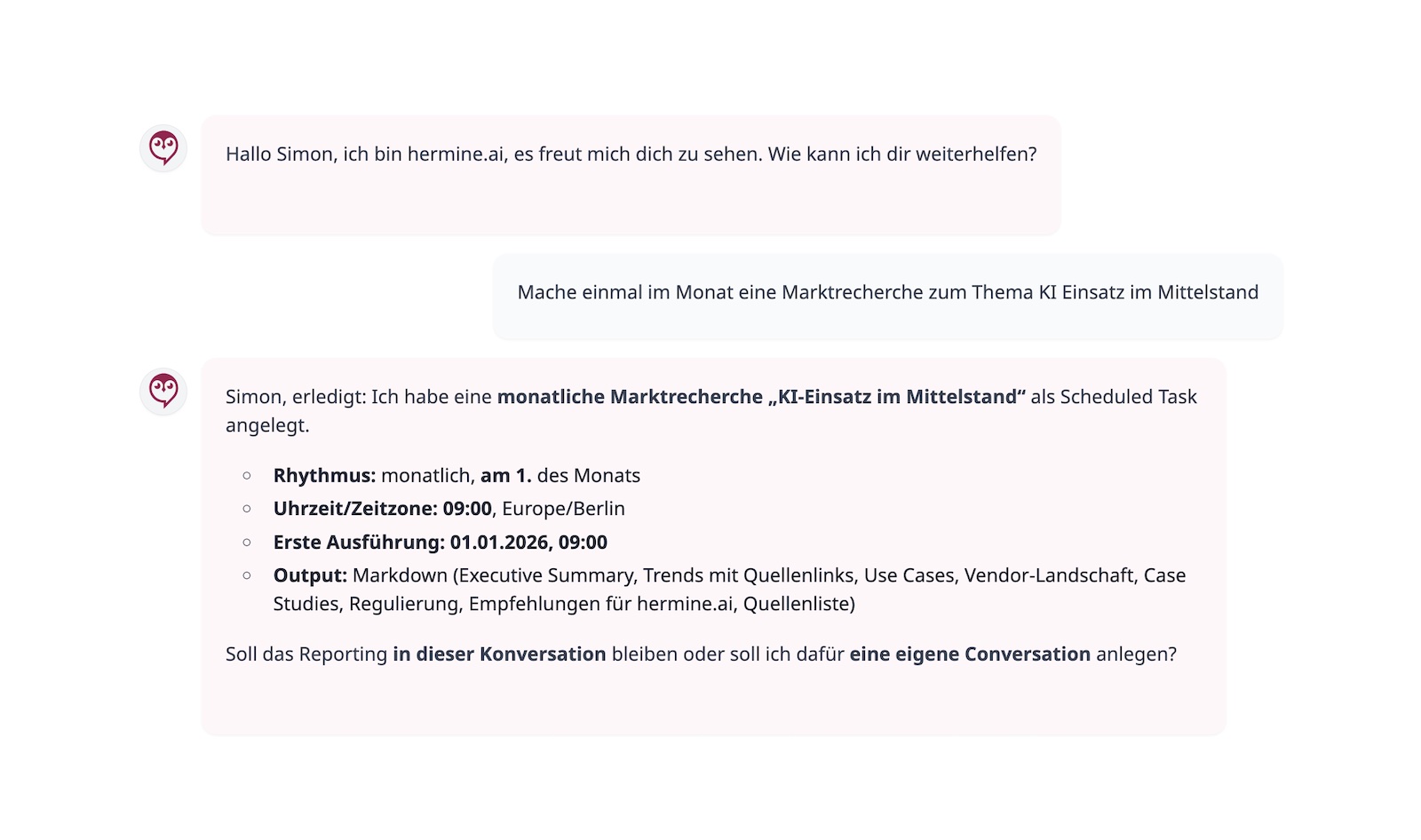
Nach der Aktivierung ist der einfachste Weg, hermine.ai direkt zu bitten:
Erinnere mich jeden Montag um 9 Uhr daran, den Wochenbericht zu erstellen.
Oder:
Erstelle mir jeden Tag um 8 Uhr eine Zusammenfassung der wichtigsten Tech-News.
Die KI erkennt den Zeitplan und legt die geplante Aufgabe automatisch für Sie an.
Hinweis: Das Anlegen per Chat funktioniert erst, nachdem Sie den Schalter Geplante Aufgaben aktivieren eingeschaltet haben.
Aufgabe manuell anlegen (Schritt für Schritt)
- Klicken Sie im Tab Geplante Aufgaben auf Neue Aufgabe (bzw. Erste Aufgabe erstellen, wenn noch keine Aufgabe existiert).
- Vergeben Sie einen Name (z. B. „Tägliche News-Zusammenfassung").
- Beschreiben Sie in der Anweisung, was die KI tun soll (bis zu 10.000 Zeichen).
- Wählen Sie den Zeitplan-Typ:
- Einmalig: fester Termin über den Ausführungszeitpunkt.
- Täglich: jeden Tag zur gewählten Ausführungszeit.
- Wöchentlich: ein fester Wochentag.
- Monatlich: ein fester Tag des Monats.
- Bestimmte Wochentage: Mehrfachauswahl unter Wochentage (z. B. Montag und Donnerstag).
- Prüfen Sie die Zeitzone (Standard: Europe/Berlin).
- Optional: Wählen Sie einen Agent, der die Aufgabe ausführen soll. Ohne Auswahl gilt Kein spezifischer Agent (Standard).
- Optional: Legen Sie das Ausgabeformat fest: Standard (Markdown), Markdown, Einfacher Text oder JSON.
- Optional: Tragen Sie eine Benachrichtigungs-E-Mail ein, um das Ergebnis per E-Mail zu erhalten.
- Speichern Sie mit Aufgabe erstellen.
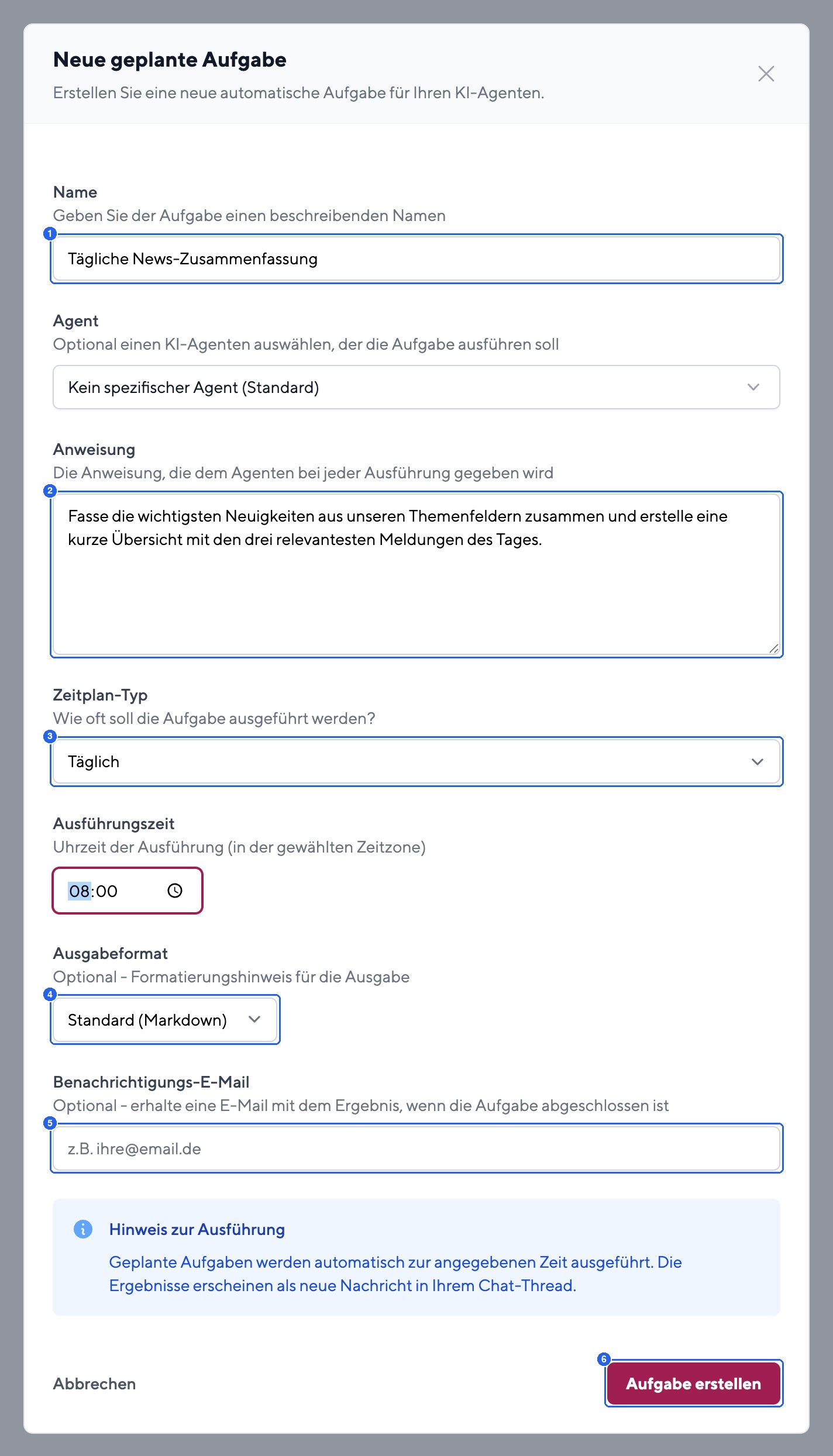
- Feld Name: ein beschreibender Titel für die Aufgabe.
- Feld Anweisung: die Arbeitsanweisung für die KI, bis zu 10.000 Zeichen.
- Auswahl Zeitplan-Typ: Einmalig, Täglich, Wöchentlich, Monatlich oder Bestimmte Wochentage.
- Auswahl Ausgabeformat: optionales Format der Ergebnisse.
- Feld Benachrichtigungs-E-Mail: Ergebnis optional per E-Mail erhalten.
- Button Aufgabe erstellen: speichert die Aufgabe.
Aufgabenübersicht
Die Liste Ihre geplanten Aufgaben zeigt zu jeder Aufgabe Name, Agent, Zeitplan, Nächste Ausführung und Status sowie einen Ausführungszähler.
| Status | Bedeutung |
|---|---|
| Aktiv | Die Aufgabe läuft nach Zeitplan. |
| Pausiert | Die Aufgabe ist vorübergehend gestoppt. |
| Abgeschlossen | Eine einmalige Aufgabe wurde ausgeführt. |
| Fehlgeschlagen | Die letzte Ausführung ist fehlgeschlagen. |
| Aktion | Beschreibung |
|---|---|
| Jetzt ausführen | Führt die Aufgabe sofort aus, unabhängig vom Zeitplan. |
| Pausieren | Stoppt die Aufgabe vorübergehend. |
| Fortsetzen | Reaktiviert eine pausierte Aufgabe. |
| Bearbeiten | Ändert Name, Anweisung oder Zeitplan. |
| Löschen | Entfernt die Aufgabe dauerhaft. |
Ergebnisse einsehen
Fällige Aufgaben werden automatisch im Fünf-Minuten-Takt geprüft und ausgeführt. Jede Ausführung erzeugt eine neue Nachricht im verknüpften Chat, gekennzeichnet mit Geplante Aufgabe. Zusätzlich gilt:
- Bei hinterlegter Benachrichtigungs-E-Mail erhalten Sie das Ergebnis per E-Mail.
- Über abgeschlossene Aufgaben informiert Sie auch das Benachrichtigungs-Center.
- Bei Status Fehlgeschlagen finden Sie den Grund in der Fehlermeldung der Aufgabe.
Tipps für effektive Aufgaben
- Klare Anweisungen: Je präziser die Anweisung, desto besser das Ergebnis.
- Passenden Agent wählen: Nutzen Sie Agenten mit Zugriff auf die benötigten Werkzeuge.
- E-Mail nutzen: Bei wichtigen Aufgaben aktivieren Sie die E-Mail-Benachrichtigung.
- Zeitzone beachten: Aufgaben laufen in der eingestellten Zeitzone (Standard: Europe/Berlin).
Tipp: Kombinieren Sie geplante Aufgaben mit Persönlichen Erinnerungen. Die KI kennt dann bereits Ihren Kontext und liefert passendere Ergebnisse.
War diese Seite hilfreich?